Add a staff member
Role: Administrator.
Create staff accounts so coordinators and instructors can work within their assigned responsibilities. Before starting, confirm the academic programs and enabled campuses that the staff member will support.
Steps
- Open Settings → Staff → Add New.
- Review the form's role descriptions.
- Enter the required Name and Email. The example creates Taylor Clinical Coordinator, taylor.clinical@helpdemo.com.
- Under Role & Scope Assignments, choose Role. The example uses Clinical Coordinator.
- Review Campus and Academic Program. The demo uses all campuses and programs. Choose scopes appropriate to the staff member's responsibilities; the form explains that blank scope means all values, and only tenant-wide administrators can grant it.
- Leave Disable Access off for an account that should be able to use the system.
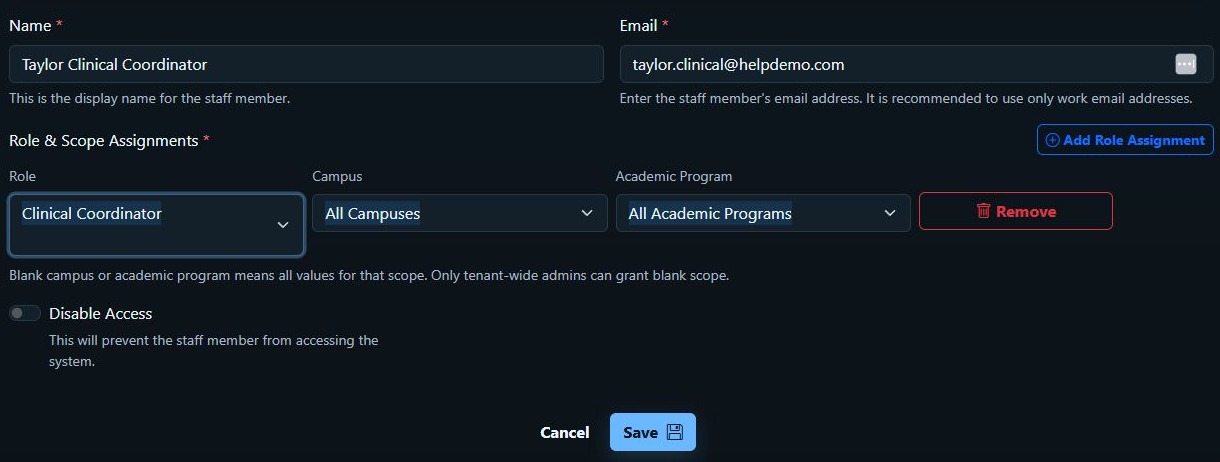
- Select Save.
- Confirm the success notification and the new row in Staff Members, including its role and access status.
Common problems
- If Staff is absent from Settings, ask your tenant administrator to create the account.
- Review the saved role and access status before assigning the person to courses or groups. Disable Access should remain off for an active demo account.
Related guides
For adding a coordinator inline on a course, see Add a course coordinator during course setup.