Review and export attendance records
Roles: Administrator, Clinical Coordinator, or Course Coordinator.
Use Attendance Records to inspect individual check-in/out records and their hours. Before starting, create the course, clinical site, student, and rotation/group. Records must exist in the selected date range.
Steps
- Open Reports → Attendance Records.
- Review Start Date and End Date. The walkthrough used September 14–October 14, 2026, with All Courses and All Sites.
- Review the student's program, campus, course, site, arrival/departure times, and hours. Scroll the table horizontally to inspect Manual Edit and Missed Checkout when needed.
- Check the report's Total. The fictitious example shows Avery's two-hour manual entry and Total: 2.00.
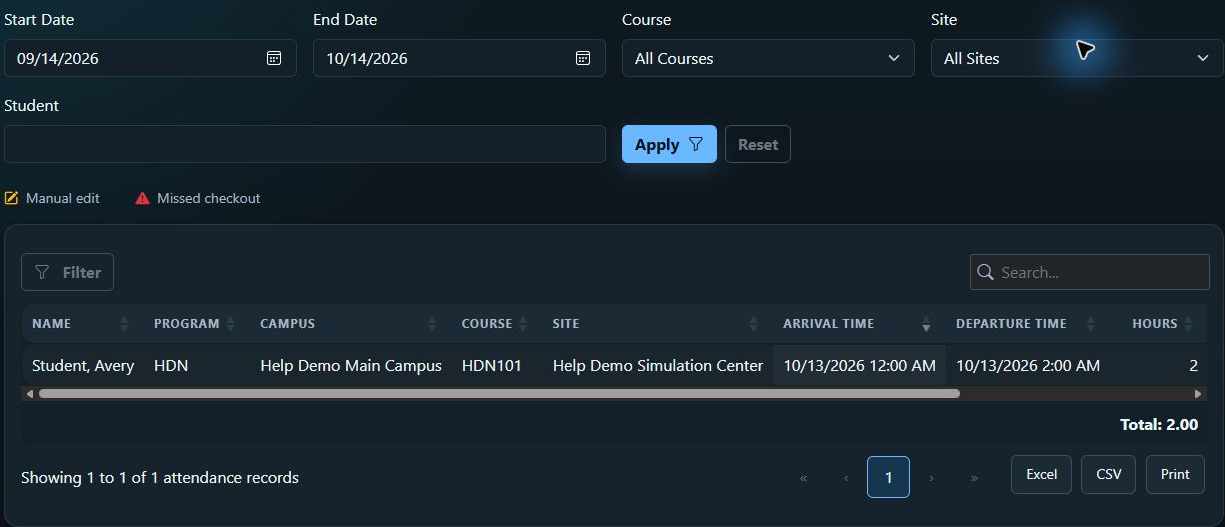
- Select CSV and confirm the download. The verified export contains the attendance record and a separate total row. Account for that total row when processing the CSV.
Common problems
- Review date range and selected filters when records are missing. Course, Site, Student, and Apply controls are displayed; combining these filters was not exercised in this walkthrough.
- If a rotation's hours disagree with this report, compare the underlying records and report the discrepancy before making repeated corrections. The earlier Help Demo discrepancy was fixed and rechecked: a later correction shows three hours in both the group and this report.
- Excel and Print are displayed but were not exercised here.