Create a competency map
Create a competency map with competencies and sub-competencies, with an optional domain level to group related competencies.
Roles: Administrator, Clinical Coordinator, or Course Coordinator. Before you begin: Competency Maps are enabled for the program. Choose the structure before adding values; structure can only be changed while the map is empty.
Create the map
-
Open Settings → Competency Maps.
-
Select Add New → Manual Entry.
-
Select Structure:
Option Levels Use when Two tiers: Competency → Subcompetency Competencies contain sub-competencies directly. Your framework does not group competencies into domains. Three tiers: Domain → Competency → Subcompetency Domains contain competencies, which contain sub-competencies. Your framework groups competencies into domains. This is the default for new maps. -
Enter the required Name, such as Demo Communication Competencies for three tiers or Demo Two-Tier Communication for two tiers.
-
Select Academic Program(s), such as Help Demo Nursing (HDN).
-
Select Save and confirm the map appears in the list with the expected Structure.

Add its values
Select Manage on the map's row, then follow the steps for its structure.
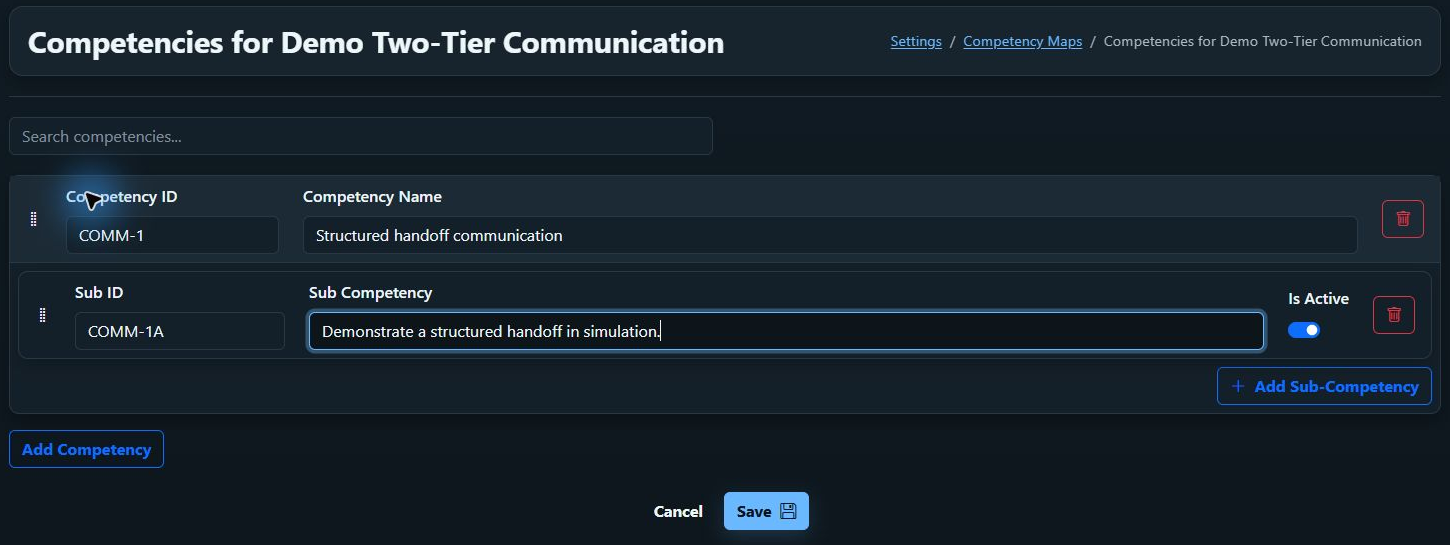
Two tiers
- Select Add Competency. There is no domain level.
- Enter Competency ID and Competency Name, such as COMM-1 and Structured handoff communication.
- In the sub-competency row, enter Sub ID and Sub Competency, such as COMM-1A and Demonstrate a structured handoff in simulation.
- Leave Is Active on for a sub-competency you intend to use. Each competency must contain at least one sub-competency.
- Use Add Sub-Competency or Add Competency for more values, then select Save.
Three tiers
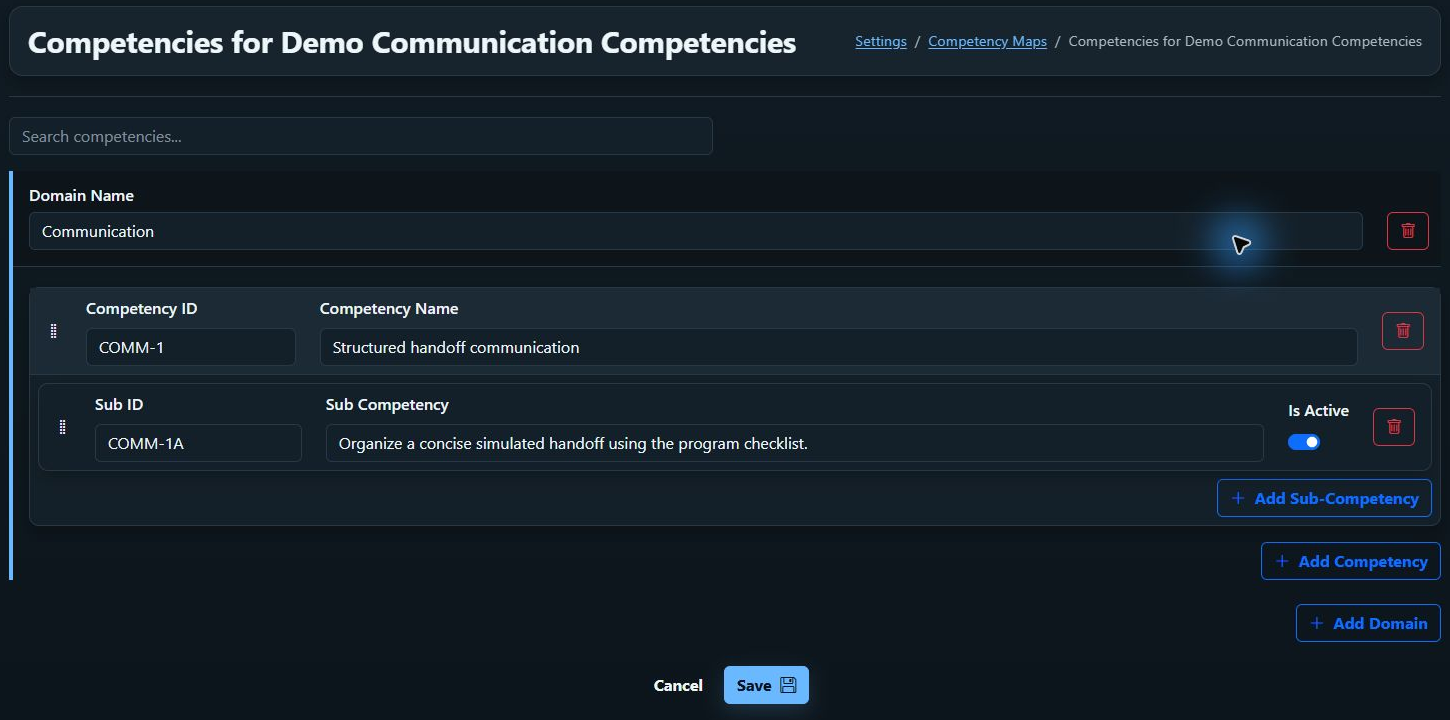
- Select Add Domain.
- Enter Domain Name, such as Communication.
- Enter Competency ID and Competency Name. The example uses COMM-1 and Structured handoff communication.
- Enter Sub ID and Sub Competency. The example uses COMM-1A and Organize a concise simulated handoff using the program checklist.
- Leave Is Active on for a sub-competency you intend to use.
- Use Add Sub-Competency, Add Competency, or Add Domain for more values, then select Save.
Confirm it worked
Confirm the expected Structure and updated Count in the map list. The two-tier example changed from 0 to 1. Reopen Manage and confirm the saved IDs, names, and Is Active settings.
If something goes wrong
- Structure cannot be changed: a populated map locks its structure. Choose the correct structure on a new, empty map.
- Values do not save: review the validation messages, complete the named fields, and ensure each competency has a sub-competency. Select Save, then reopen Manage to check the values.
- Cannot find a value: clear Search competencies... and check the map's structure. Two-tier maps do not have domains.
Next task
Add a skill category to use the map when configuring skills.