Correct a student's attendance hours
Roles: Administrator, Clinical Coordinator, or Course Coordinator.
Use this task to correct a student's hours for a scheduled clinical date. Before starting, confirm the rotation, group, student, and date. Use your program's attendance review process to determine the correct duration.
Steps
- Open Rotations, select the rotation, and expand the student's group.
- On Student Hours, review the student's total and date entries.
- Select Edit Hours to open Edit Time Entries.
- Find the student's row and scheduled date. Scroll horizontally for later dates.
- Enter the correct duration in hours. The fictitious walkthrough changes Avery's October 13, 2026 value from 2 to 3.
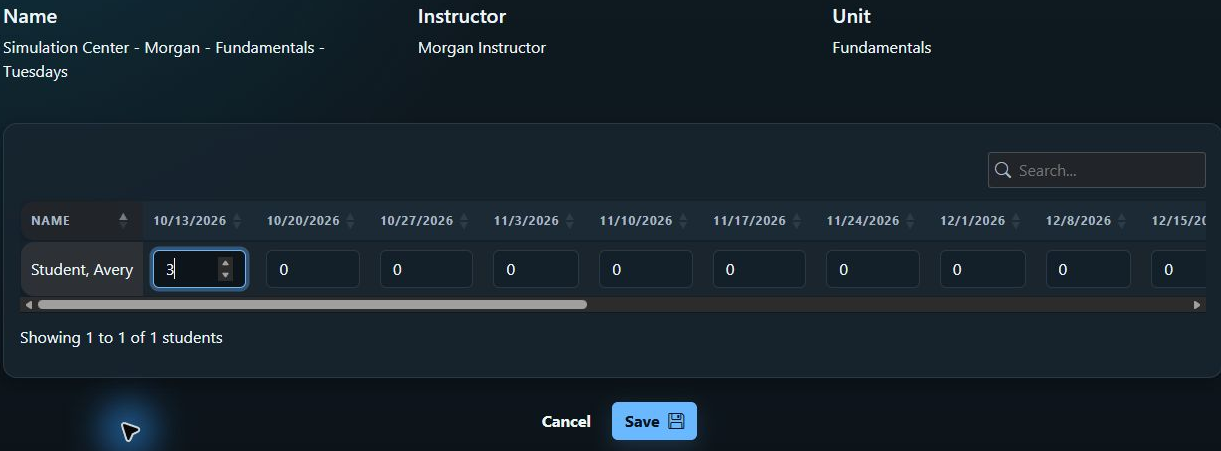
- Select Save.
- Confirm the date entry and student's Total on Rotation Details. The demo shows 3, Average Hours 3, Manual Edits 1, and Missed Checkouts 0.
- Reopen Edit Hours and confirm the duration persists. The demo reopened with 3.
- Review Attendance Records to compare the underlying record. The demo shows three hours, Manual Edit Yes, and Total 3.00.
Common problems
- Check the student and date before editing; similar groups can have different schedules.
- A success notification alone does not prove the result. Reopen the editor and compare the report before repeating an edit.
- If totals disagree, record the differing views and ask for support.