Review rotation hours
Review student attendance by scheduled date and edit a student's hours when a correction is needed.
Roles: Course Coordinator or instructor assigned to the rotation group. Before you begin: Your course coordinator assigns you to a student group with a site, scheduled dates, and students. Confirm the correct duration using your program's attendance review process before editing.
Open the group
- Select Rotations in the navigation.
- Select your rotation, such as HDN101 - Fall 2026.
- On Rotation Details, review the course, date range, target hours, student count, average hours, manual edits, and missed checkouts.
- Find your group under Student Groups. Expand it if needed.
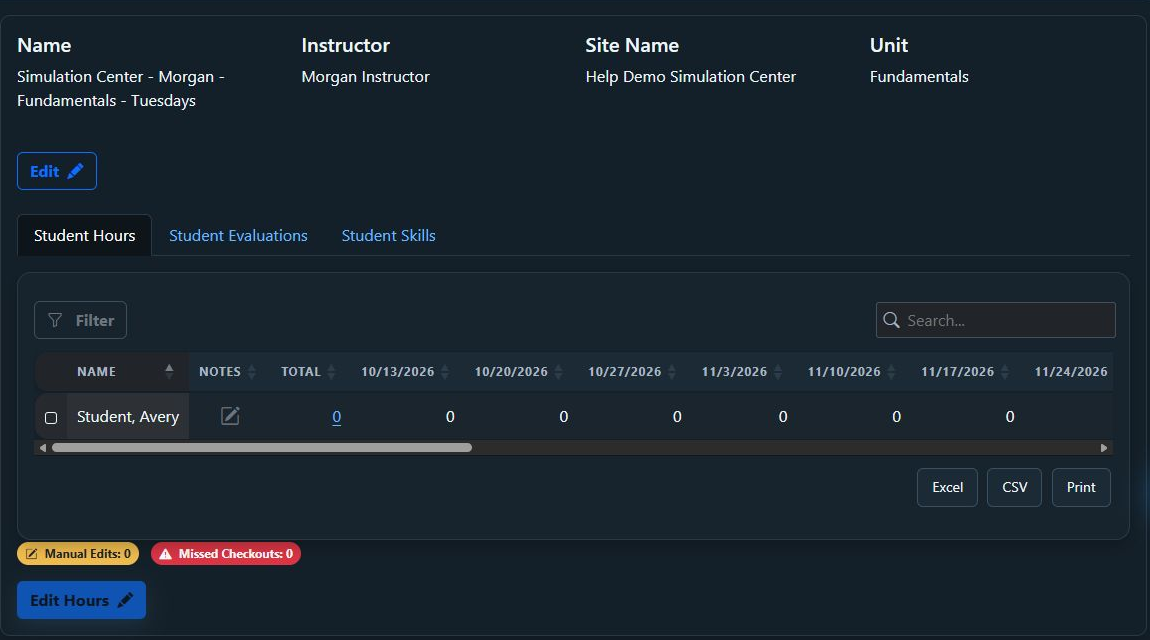
- Confirm the instructor, site, and unit, then select Student Hours.
Review the hours
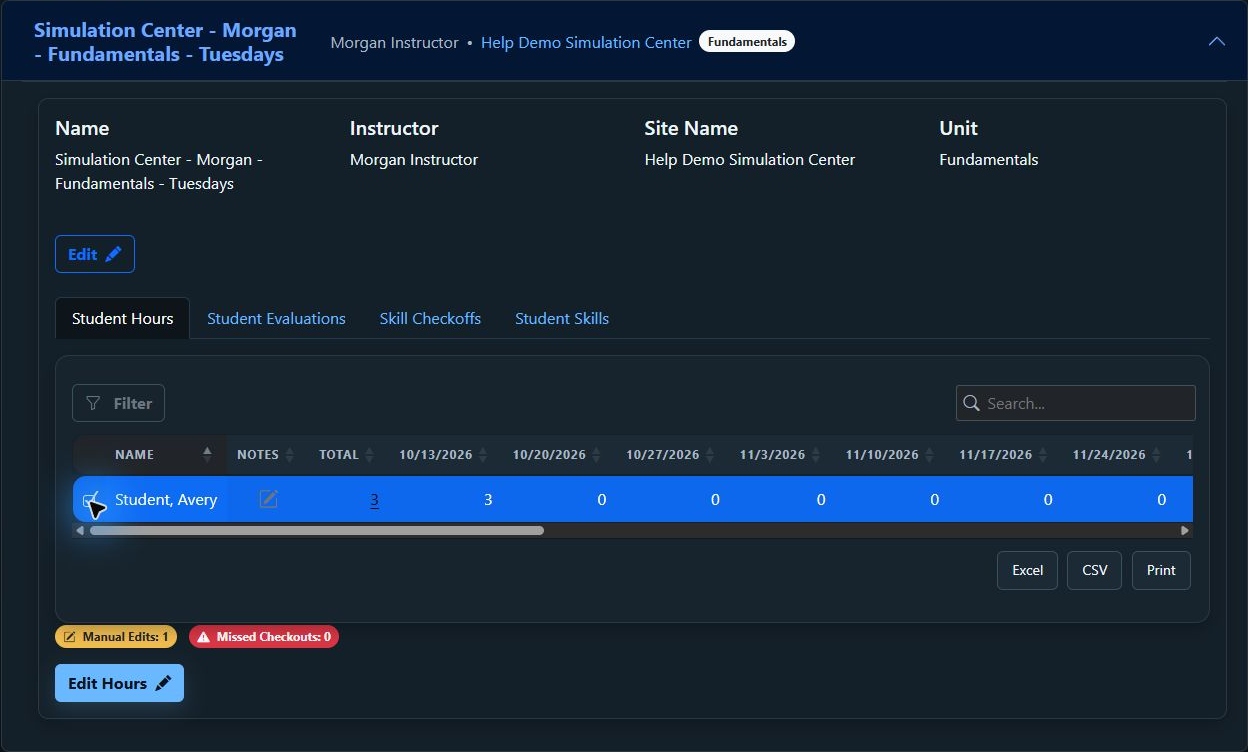
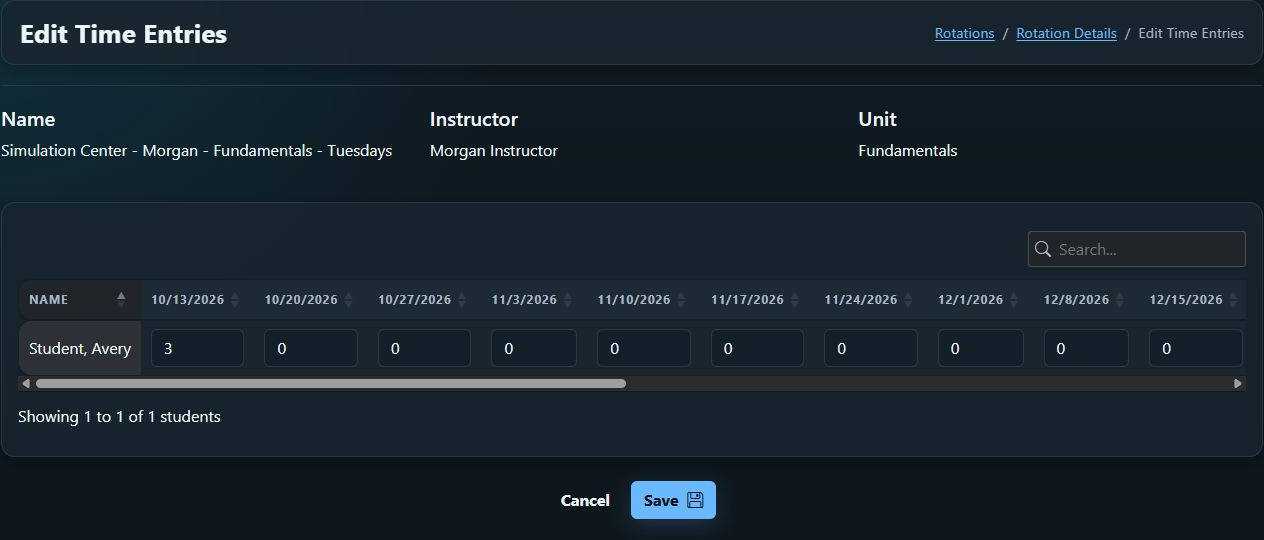
The table shows each student, their Total, and hours for each scheduled date. Scroll horizontally to see later dates. Scheduled dates alone do not create attendance credit. The editing screenshots below show Avery's existing 3 hours for October 13, 2026, with 0 on the other dates.
The table provides Search, Filter, Excel, CSV, and Print controls.
Edit student hours
- In Student Hours, select the checkbox next to the student's name. The selected row is highlighted.
- Select Edit Hours below the table to open Edit Time Entries for the selected student.
- Confirm the group, instructor, and student before making a change.
- Find the scheduled date column. Use the horizontal scrollbar below the row to reach later dates.
- Enter the correct duration in hours in that date's field. Enter the full duration for the date, rather than the number of hours to add or subtract. For example, if a date should total three hours, enter 3.
- Select Save. To leave without saving, select Cancel.
Confirm it worked
On Rotation Details, check the corrected date entry and the student's Total. Select the student's checkbox and reopen Edit Hours to confirm the saved duration persists. A success notification alone does not confirm that the value changed.
For a coordinator's report comparison, see Correct a student's attendance hours and the Attendance Records report.
If something goes wrong
- If the editor shows the wrong student or group, select Cancel, return to Student Hours, and check the student selection before reopening Edit Hours.
- If you cannot find the date, scroll horizontally and confirm you opened the correct rotation and group.
- If a correction does not persist or totals disagree, reopen the editor to check the duration before repeating the edit, then ask your course coordinator to review the attendance record.
Related work
Use Student Evaluations for evaluation review. Use Student Skills to review student skill logs when the program has Enable Skill Logs enabled and the course has at least one skill log category assigned.
Return to instructor and preceptor guides.