Review student skill logs
Outcome
Review the skills students recorded for your rotation group and, when instructor review is required, approve one entry or multiple entries at once.
Before you begin
You must be an instructor assigned to the rotation group. Availability depends on your academic program and course configuration:
- The academic program must have Enable Skill Logs enabled.
- The course must have at least one skill log category assigned.
- Instructor review and approval are required only when Require Instructor Review is enabled. When it is off, no instructor approval step is required.
- The Time Spent field is visible to the instructor only when Require Time Spent on Skill is enabled. It shows the time spent in minutes.
Ask your coordinator to check these settings if the tab, fields, or review actions you expect are missing. Skill logs record student-reported practice; they are separate from instructor-led skill checkoffs.
Open and review student skills
- Select Rotations, then open your rotation, such as HDN101 - Fall 2026.
- Under Student Groups, expand your assigned group and confirm the instructor, site, and unit.
- Select Student Skills.
- Review the Student, Date, Skill, Participant Level, and Comments for each entry. Student comments are optional, so a blank Comments cell is valid. When enabled, also review Review Status and Time Spent.
- Use Search or Filter to find the entries you need to review.
Approve selected entries
Follow these steps when Require Instructor Review is enabled.
- Select the checkbox at the left of each entry you want to approve. You can select multiple items and approve them at once. Check each selected student's name, date, and skill before proceeding.
- Check the selected row count and the count on Approve Selected. The screenshot shows one selected entry; your count increases as you select more entries.
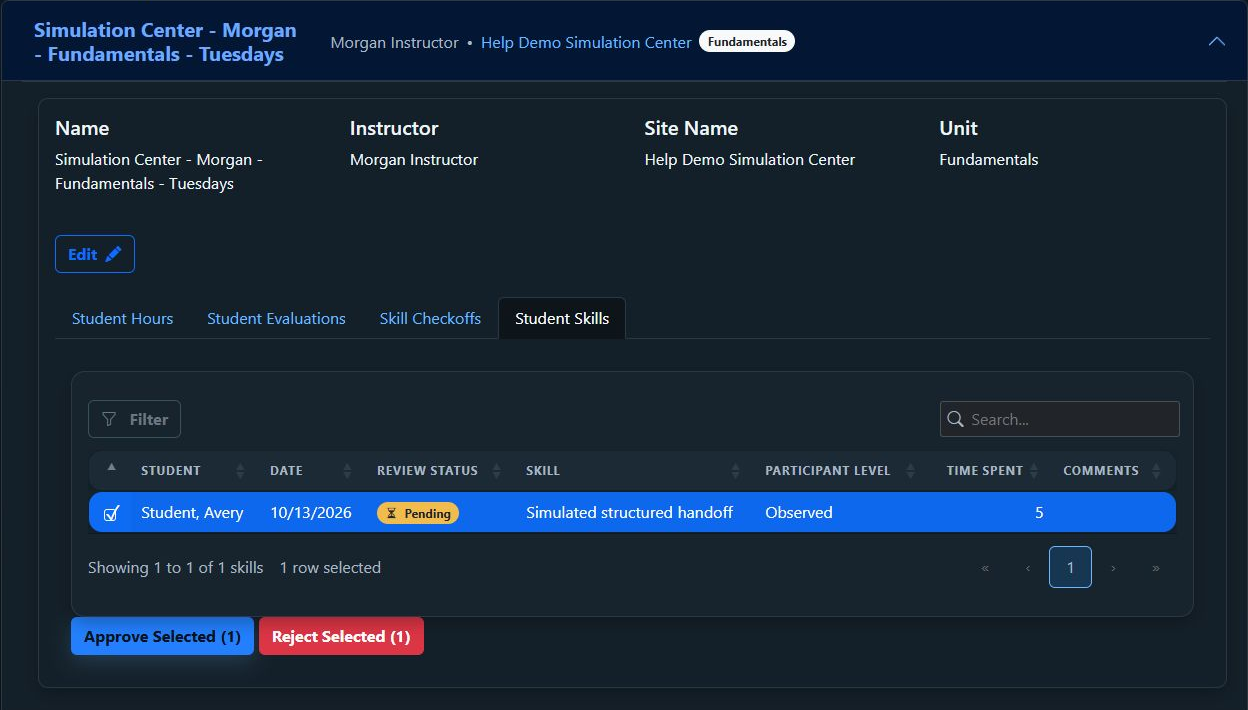
- Select Approve Selected below the table to open Approve Skills.
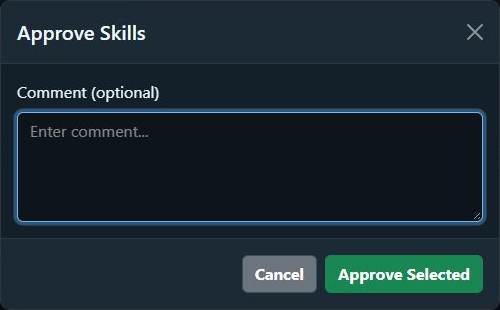
- Add a Comment (optional) if helpful. Approval comments are optional; you can leave this field blank. For a batch approval, the same comment applies to all selected items.
- Select Approve Selected in the dialog to save the approval for all selected entries. Select Cancel to close the dialog without approving.
The table also offers Reject Selected. Rejection requires a reason; the optional-comment rule applies to approval.
Confirm it worked
After approving, check that each selected entry's Review Status shows Approved. Reload the rotation, reopen Student Skills, and confirm those statuses persist. A notification alone does not confirm the saved result.
If something goes wrong
- Student Skills is missing: Confirm the program has Enable Skill Logs enabled and the course has at least one skill log category assigned.
- Review controls are missing: Ask your coordinator whether Require Instructor Review is enabled.
- Time Spent is missing: It appears only when Require Time Spent on Skill is enabled.
- Approve Selected is disabled: Select at least one entry using its checkbox.
- An entry or saved approval is missing: Check the rotation, group, search, and filters. Reopen the table before repeating the action, then ask your coordinator to review any discrepancy.
Next task
Continue with rotation hours, evaluation review, or skill checkoffs, or return to instructor daily activities.