Find and export skill checkoff records
Roles: Administrator, Clinical Coordinator, or Course Coordinator.
Use this report to review checkoff submissions across rotations. Before starting, assign a checkoff to a course and have an instructor save or complete a submission.
Steps
- Open Reports → Student Skill Checkoffs.
- Review Start Date and End Date. The walkthrough used September 14–October 14, 2026, which includes Avery's completed submission.
- Select Course and choose HDN101, then select Apply.
- Confirm the result's student, program, campus, course, rotation, checkoff, status, and activity/completion dates. The example has one Complete Demo Handoff Checkoff. Its result and score are NA, matching the form's Overall Grading None configuration.
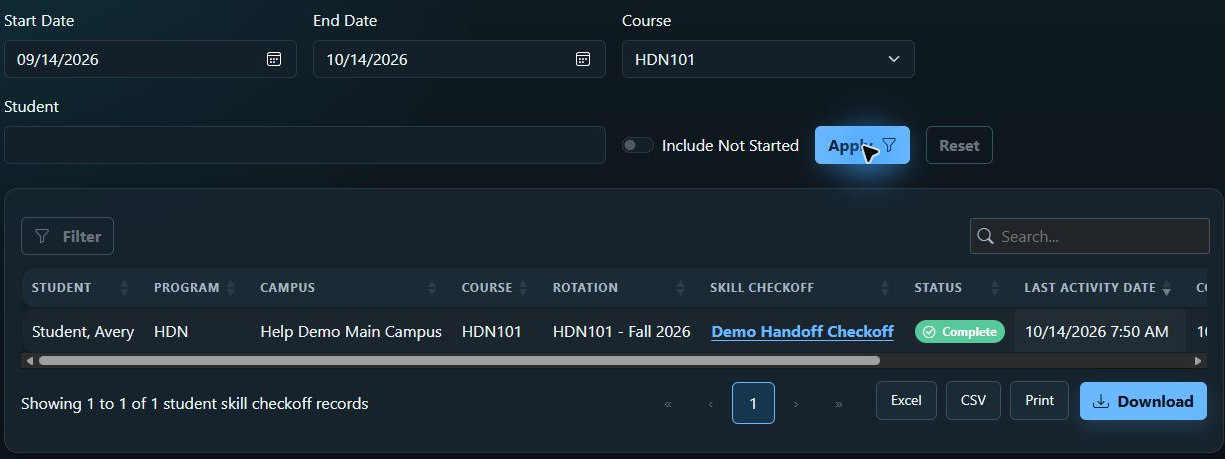
- Select CSV and confirm the downloaded file. The walkthrough verified a CSV containing the one completed demo record.
Common problems
- If a submission is missing, check its dates and selected course before changing the record.
- Student and Include Not Started provide additional controls, but those filters were not exercised here.
- Excel, Print, and Download are also displayed. Their report-level behavior was not exercised; the instructor guide verifies a separate one-record PDF download.