Create a skill checkoff form
Roles: Administrator, Clinical Coordinator, or Course Coordinator. Before you begin: Skill Checkoffs are enabled for the program.
- Open Settings → Skill Checkoffs.
- Select Add Skill Checkoff.
- Enter the required Title, such as Demo Handoff Checkoff.
- Review Overall Grading. The demo uses None.
- Select the required Academic Program(s), such as Help Demo Nursing (HDN).
- Add optional Instructions.
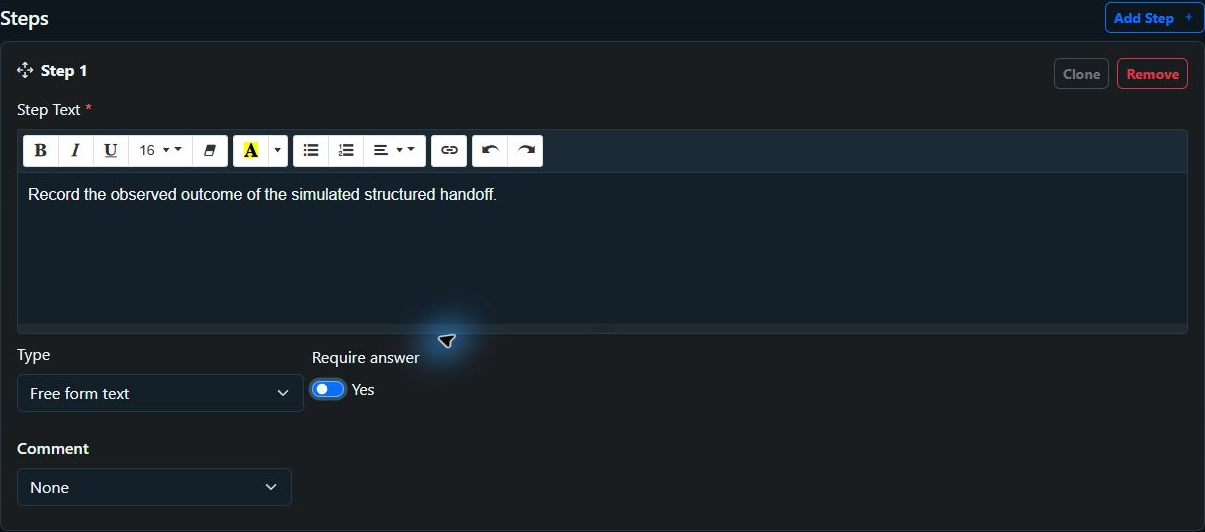
- Under Steps → Step 1, enter the required Step Text. The demo asks for the observed outcome of a simulated structured handoff.
- Choose the response Type and whether an answer is required. The demo uses Free form text, Require an answer → Yes, and Comment → None.
- Select Save.
- Confirm the title appears in the Skill Checkoffs list.
The editor also offers additional steps, cloning, response types, and Preview. Saving a definition does not assign it to a course; follow Assign a course skill checkoff.
Delete or archive a skill checkoff
Delete a form only when you no longer need it and both of these conditions are met:
- It is not assigned to any course.
- It has no historical submissions.
Open the checkoff from Settings → Skill Checkoffs, select Delete, then confirm the deletion. If the form is assigned to a course or has historical submissions, deletion is blocked. Removing a course assignment does not make a form with historical submissions eligible for deletion.
Archive a checkoff that you want to retire while preserving its submissions and reporting history:
- Open the checkoff from Settings → Skill Checkoffs.
- Turn on Archive Checkoff and select Save.
Archived checkoffs are hidden from the default Skill Checkoffs list and cannot be newly assigned to courses. Existing course assignments and historical reporting remain available; archiving does not remove those assignments.
To find an archived checkoff, open Filter in the Skill Checkoffs list and turn on Include Archived. To make it available for new assignments again, open it, turn off Archive Checkoff, and select Save.
Return to administrator and coordinator guides.