Complete an evaluation
Open your assigned evaluations from My Rotations. This guide uses Weekly Clinical Evaluation (Week 5) in NG301 - Fall 2026.
Find your evaluation
- Sign in to your student account.
- On a phone, tap the menu button in the upper-right corner, then tap My Rotations.
- Tap the rotation name. In this example, select NG301 - Fall 2026.
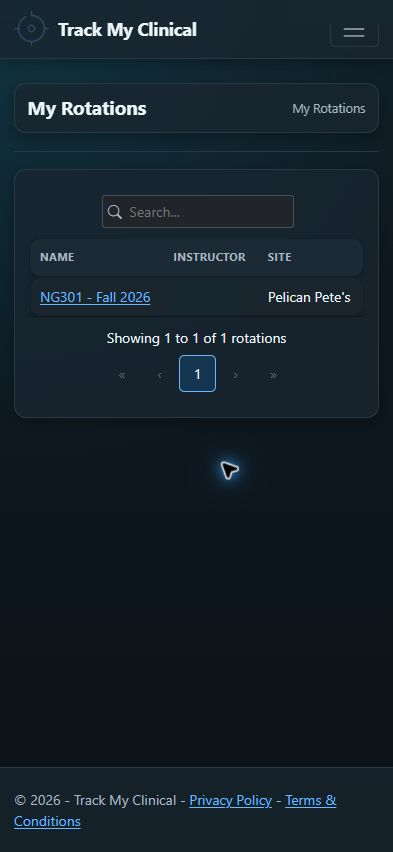
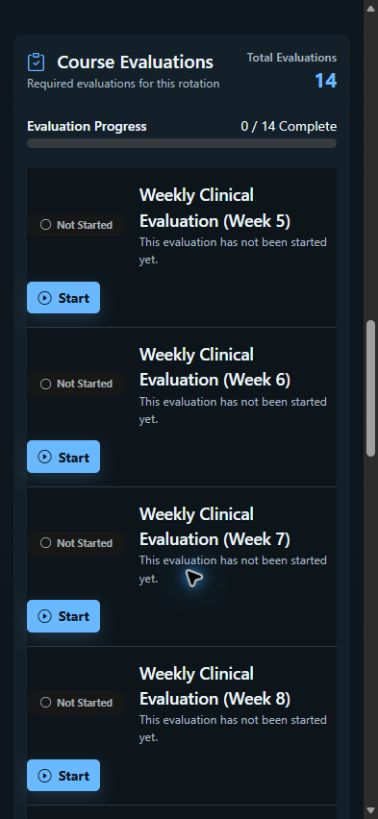
- Scroll down to Course Evaluations.
- Find the correct evaluation and week. Tap Start under Weekly Clinical Evaluation (Week 5).
Answer the questions
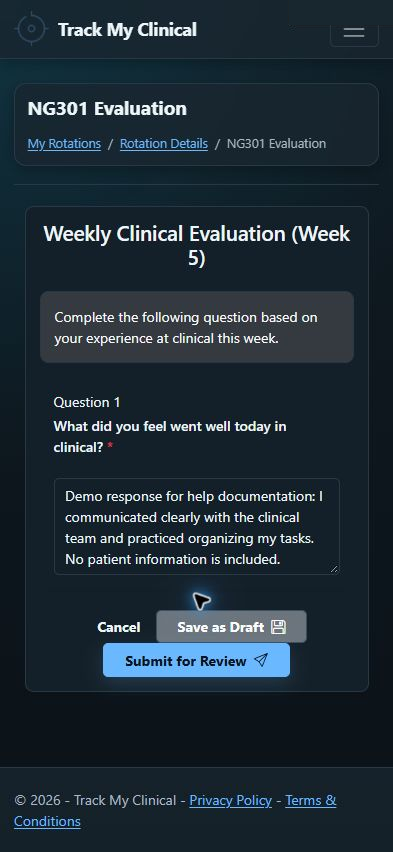
- Check the evaluation title and read its instructions.
- Enter your response to each question. Questions marked with * are required. Week 5 asks: What did you feel went well today in clinical?
- Review your answers before saving or submitting. Use your own clinical experience and avoid patient names or identifying information.
Save or submit
- To keep your work for later, tap Save as Draft.
- When your answers are ready for review, tap Submit for Review.
- To leave the form, tap Cancel. Save a draft first if you want to keep your work.
Resume a draft
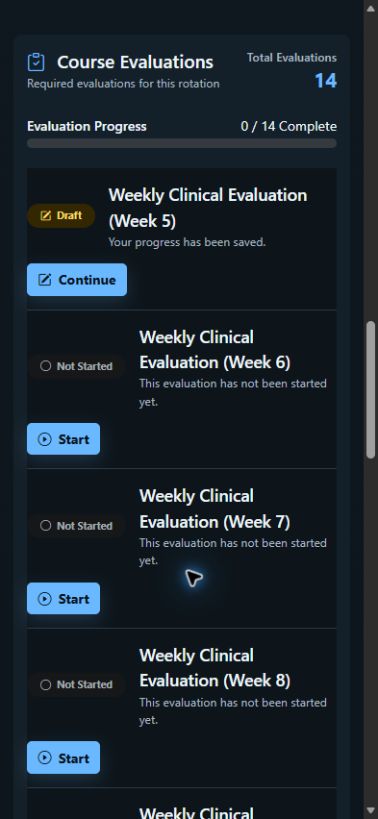
After Save as Draft, you return to Rotation Details. The evaluation shows Draft and Your progress has been saved. Tap Continue to reopen it with your saved responses, finish your answers, and tap Submit for Review when ready.
Confirm submission
After Submit for Review, you return to Rotation Details. Verify that the evaluation shows Awaiting Instructor Review. Tap View to open the submitted evaluation.
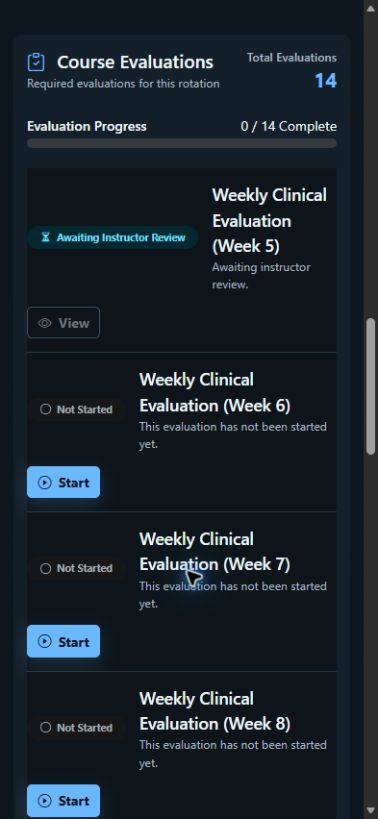
Submitting your responses does not yet mark the evaluation complete. In this example, Evaluation Progress remains 0 / 14 Complete while Week 5 awaits instructor review.
An evaluation labeled Awaiting Instructor is waiting for your instructor's evaluation; it is different from your submitted response awaiting review. See Review your rotations for other assigned requirements and progress.
Screenshots use a student demo account in an iPhone 16 browser view. The response is a documentation example. Your rotation, evaluation title, instructions, and questions may differ.
Return to the student guides.