Review and export your clinical hours
Use My Hours to review attendance after checking in and out.
Find your attendance
- Open the phone menu and tap My Hours. On Home, you can also tap Track Your Progress.
- Review Total Hours and the attendance table.
- Find the relevant course and date. Each record shows Course, Site, Arrival Time, Departure Time, and Hours.
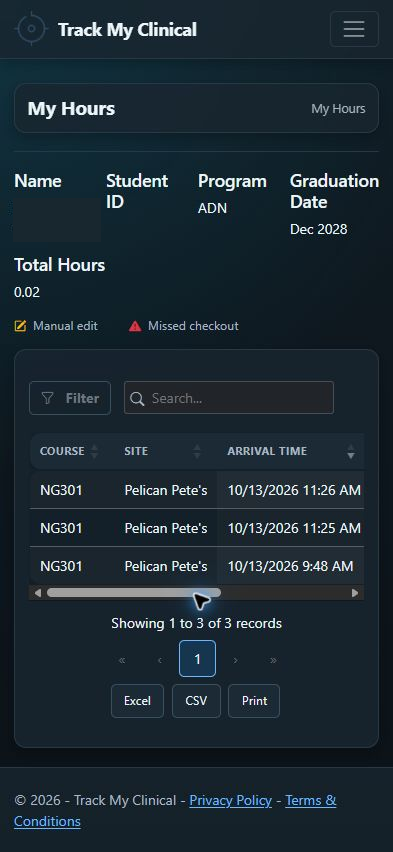
On a phone, swipe horizontally within the table to see the departure time and hours. Use the pagination controls if your records span multiple pages.
Search and filter
- Enter a course, site, or other displayed detail in the search box to narrow the table. Clear the search to show matching records again.
- Tap Filter to open the Course and Site filter panels. Use Clear All to remove active filters.
- Tap a column heading, such as Arrival Time, to change the sort order.
If a record seems missing, clear search and active filters before assuming it was not recorded.
Export or print
Below the table, use Excel, CSV, or Print. Before exporting, review the table and any active search or filters so you know which records you are viewing. Your browser may prompt you to download a file or open a print dialog.
The legend identifies Manual edit and Missed checkout markers. If a record has unexpected times or hours, note the course, site, clinical date, and expected times, then contact your instructor or program coordinator. See Troubleshoot check-in and attendance.
Screenshots use the mobile student demo; the short sample sessions are not examples of a full clinical shift.
Return to the student guides.