Add a skill log entry
Use My Skill Log to record skills from your clinical experience.
Open a new entry
- Sign in to your student account.
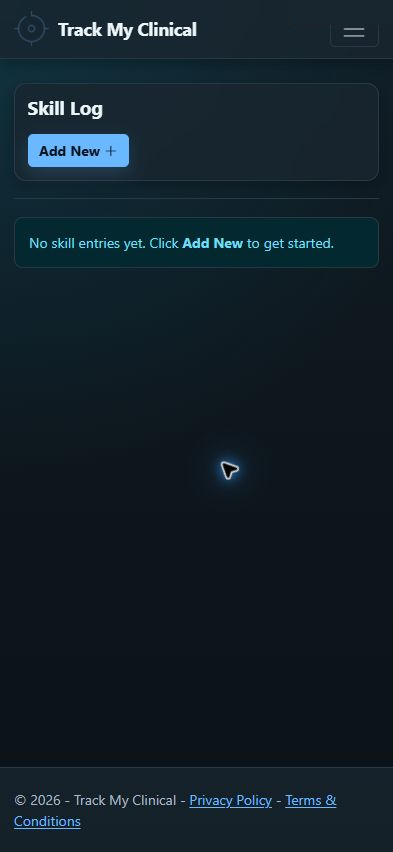
- On a phone, tap the menu button in the upper-right corner, then tap My Skill Log. You can also tap View Your Skill Log on the Home page.
- Tap Add New.
Choose the course and skills
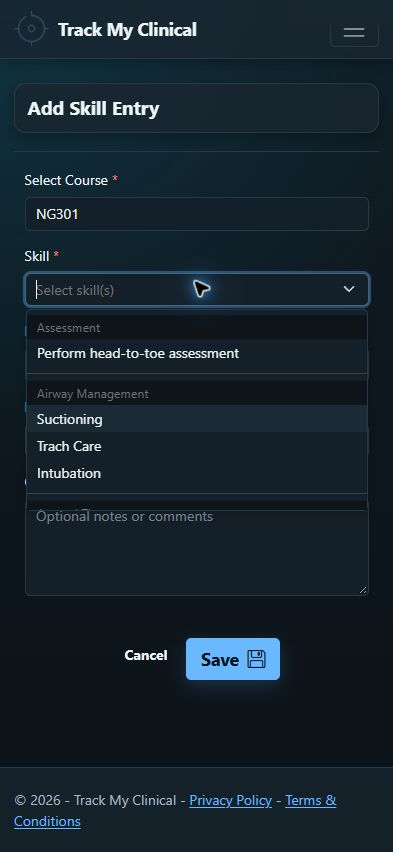
- Choose the relevant course under Select Course. The example uses NG301.
- Tap Select skill(s) and choose the skill you want to record. You can select more than one skill. Tap the × beside a selected skill to remove it before saving.
Complete the details
- Choose the Participant Level that matches your involvement. The list includes Instructor-Led, Observed, Participated, and Independent (spelled this way in the app).
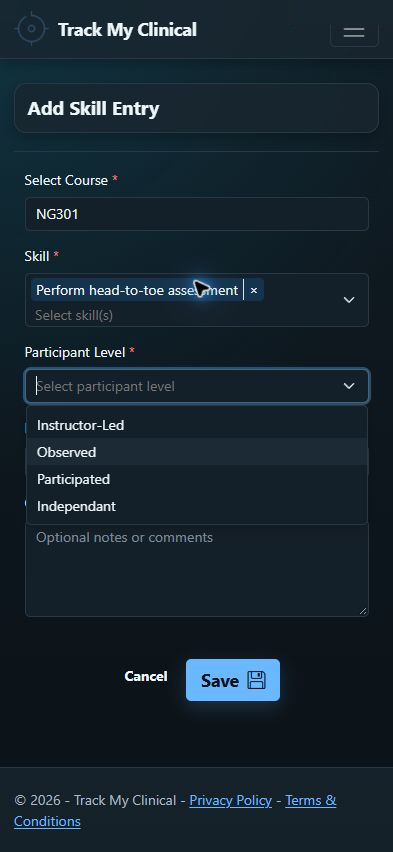
- Set Date Performed to the date you performed the skill. Check the date even when it is already filled in.
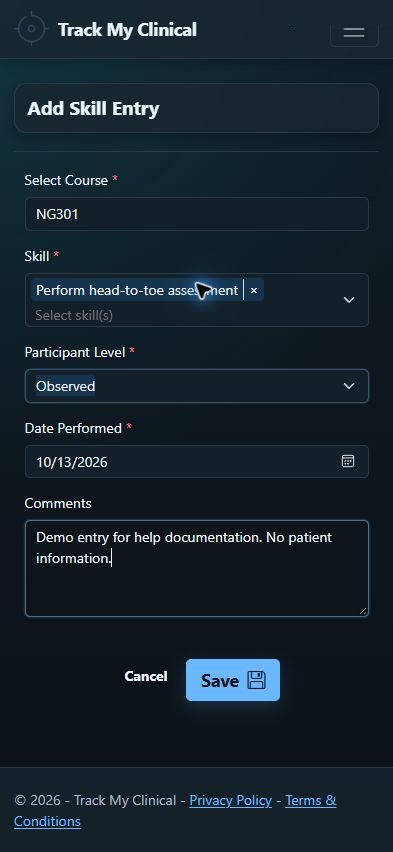
- Add Comments if needed. Comments are optional; avoid including patient names or identifying information.
- Review the course, skill selections, participant level, date, and comments.
Save and review
- Tap Save. To leave without saving, tap Cancel instead.
- After saving, verify that your entry appears in Skill Log. The demonstrated entry has a Pending review status; saving it does not mean it has been approved.
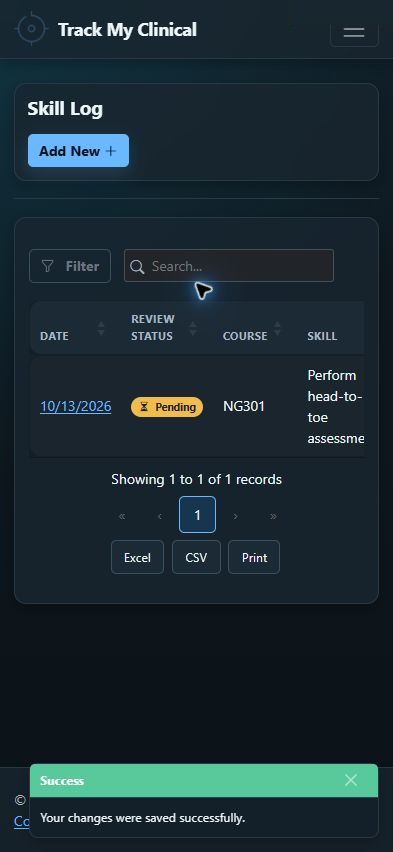
On a phone, swipe horizontally within the table to see the course, skill, participant level, and comments. Tap the entry's date to open it again.
A skill log entry is separate from an instructor-graded checkoff. Pending skills do not yet appear under Approved Skills in your clinical portfolio.
About these examples
Screenshots use a student demo account in an iPhone 16 browser view. The example records Perform head-to-toe assessment, with participant level Observed, for NG301. Your available courses and skills may differ.
Return to the student guides.