Review your rotations and schedule
Check My Rotations before your clinical to review the schedule and assigned requirements.
Open your rotation
- Sign in, open the phone menu, and tap My Rotations. On Home, you can also tap View Your Rotations.
- Find the rotation by name. Use the search box if several rotations are listed.
- Tap the rotation name, such as NG301 - Fall 2026.
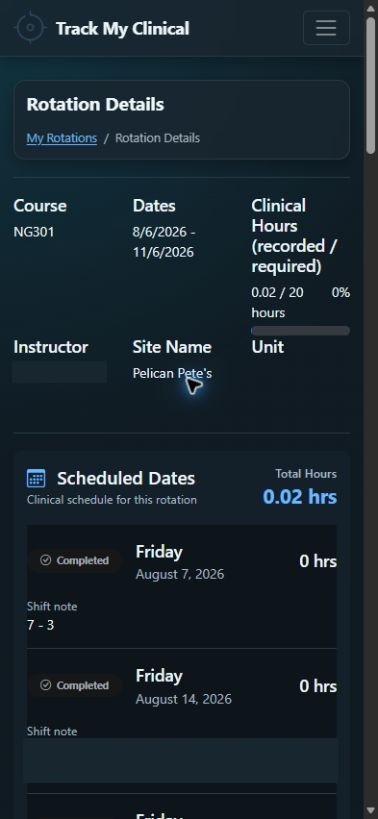
Review the Course, Dates, Clinical Hours (recorded / required), Instructor, Site Name, and Unit when shown. Recorded hours and required hours are separate values; the progress bar summarizes progress toward the requirement.
Check scheduled dates
Scroll to Scheduled Dates. Review each clinical date, its status, recorded hours, and any Shift note. Read notes before attending; a note may contain shift information.
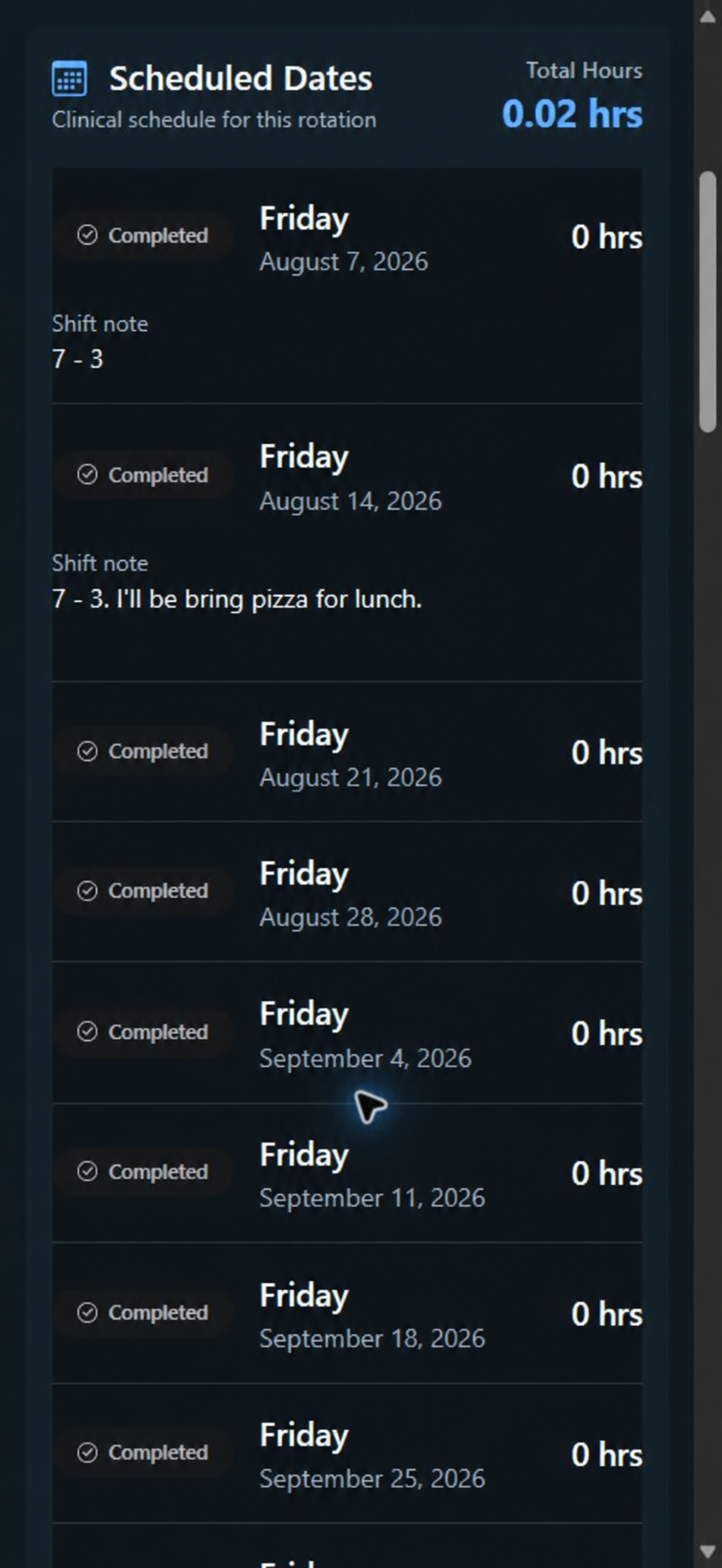
A date labeled Completed does not, by itself, confirm that you received attendance credit. Check its hours and My Hours for your attendance records.
Find assigned work
Continue scrolling to:
- Course Evaluations: find each assigned evaluation, its status, and the available action. Follow Complete an evaluation to start or resume your responses.
- Course CheckOffs: review the assigned checkoffs and their progress. Tap View to review a checkoff.
Weekly evaluations can appear as separate entries. Check the week in the title before opening one.
If a rotation, date, or requirement looks wrong, contact your instructor or program coordinator with the rotation name and the detail that needs clarification.
Screenshots use the mobile student demo; your rotation details and requirements may differ.
Return to the student guides.