Check in and out of a clinical experience
Outcome
Record your clinical hours through Check In/Out, then confirm the saved attendance in My Hours.
Before you begin
Sign in to your student account. If your institution requires location verification, allow location access for Track My Clinical when prompted. If the page requests location access, grant it and select Refresh Page.
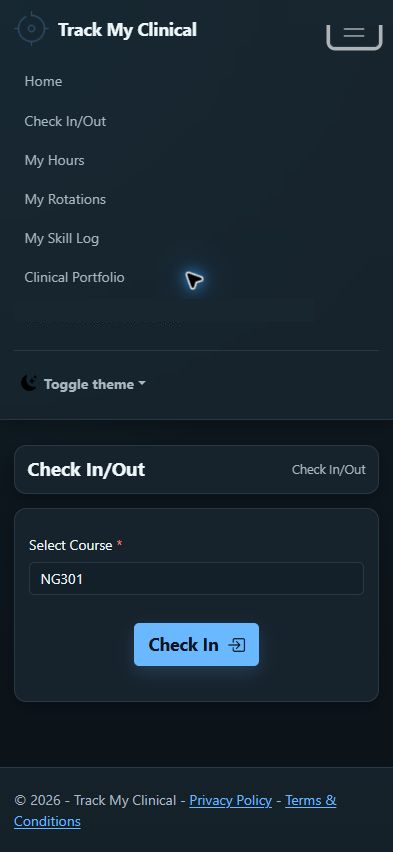
On a phone, tap the menu button in the upper-right corner of the signed-in Track My Clinical application to open its navigation links.
Steps
Check in
- Open the menu and tap Check In/Out.
- Choose your course under Select Course. The example below uses NG301.
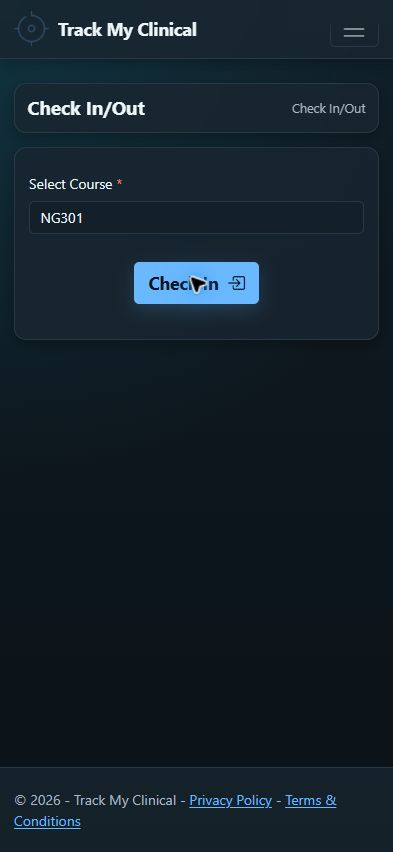
- Select Check In.
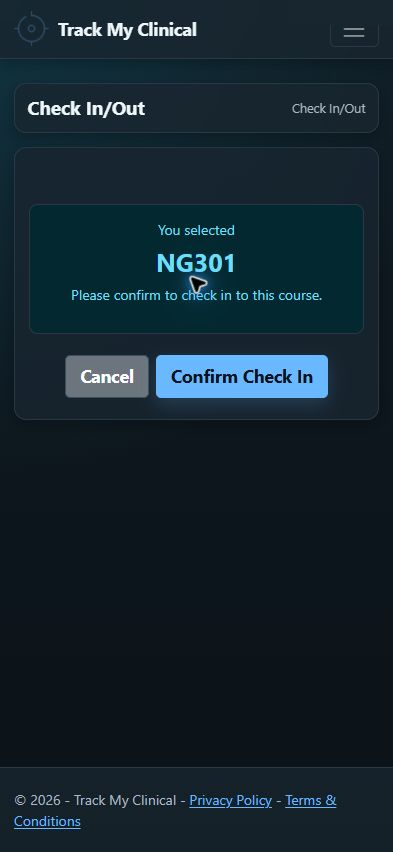
- Review the course and select Confirm Check In. Select Cancel if you need to change it.
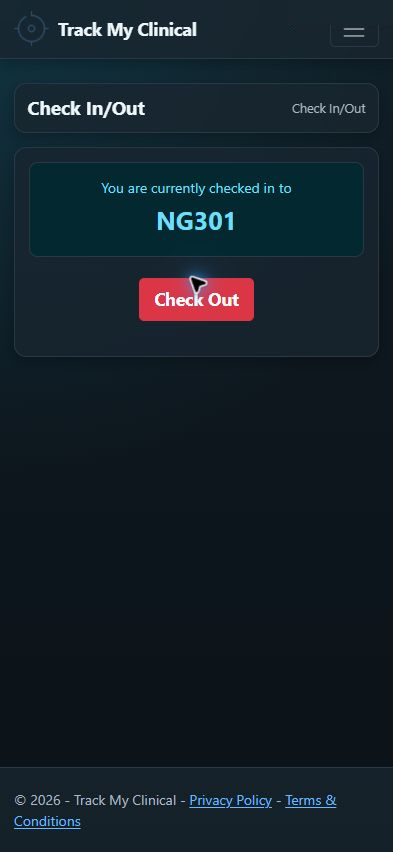
- Verify that the page says you are currently checked in to the selected course.
Check out
When your clinical experience ends, open Check In/Out and select Check Out. The success message reports your attendance credit.
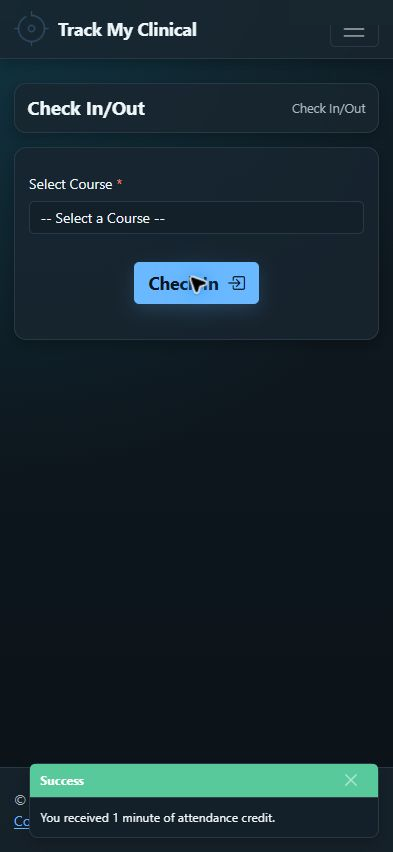
Confirm it worked
Review your hours
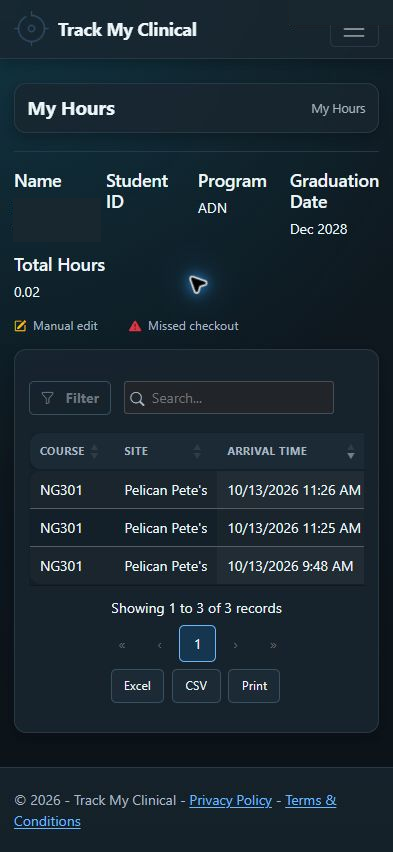
Open the menu and tap My Hours to review the course, site, arrival time, departure time, and recorded hours. Swipe horizontally within the table to see columns that are outside the phone screen.
If something goes wrong
If location access or your recorded times are wrong, see Troubleshoot check-in and attendance. For missing or incorrect attendance, contact your instructor or program coordinator rather than creating another session to correct it.
Next task
For searching, filtering, and exports, see Review your clinical hours.
Screenshots use a student demo account in an iPhone 16 browser view. The short demonstration recorded 1 minute of attendance credit and 0.02 hours. Your course, site, dates, and recorded hours will differ.
Return to the student guides.