Review a checkoff
Student checkoff details are read-only. Your instructor records the answers and grading.
Open the checklist
- Open the phone menu and tap My Rotations.
- Tap the rotation name.
- Scroll to Course CheckOffs and find the assigned checkoff.
- Tap View.
Understand the details
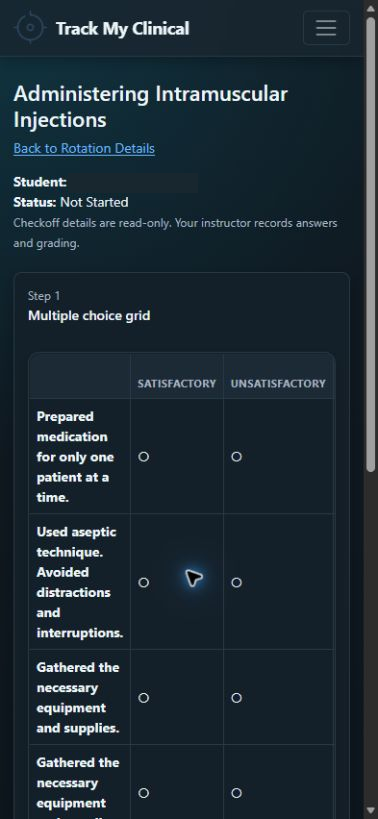
Check the title and Status, then read the steps and grading choices. Depending on the checkoff, the page may show response grids, instructor scoring, comments, and an Overall Result.
The example shows Not Started and unfilled response circles. These are displayed results, not controls for students to answer. Do not interpret an unfilled circle as a failed attempt.
On a phone, swipe horizontally within a wide response table to see additional choices. Scroll down to review the remaining steps and overall result.
Use Back to Rotation Details to return to the rotation. If you need an assessment scheduled, a result explained, or a correction made, contact your instructor. Adding a skill log entry is a separate workflow and does not fill in an instructor checkoff.
Screenshots use an assigned demo checklist to show navigation and status; follow your program's clinical procedures and instructor guidance when performing a skill.
Return to the student guides.