Add a scheduled student group
Roles: Administrator, Clinical Coordinator, or Course Coordinator. Before you begin: Create a rotation, a clinical site, and student records.
Configure the group
- On Rotation Details, select Add Group.
- Enter a descriptive Name. The form suggests site, instructor, unit, and days of week. This example uses Simulation Center - Morgan - Fundamentals - Tuesdays.
- Select Instructor(s). If needed, select Add new staff, enter their name and email, review the Instructor role and campus/program scopes, and select Add Staff. Confirm the new instructor is selected on the group form.
- Select Site, such as Help Demo Simulation Center.
- Enter an optional Unit / Floor, such as Fundamentals.
Generate a recurring schedule
- Under Scheduled Dates → Generate Recurring Dates, review Start Date and End Date.
- Select the required Days of Week, then select Generate Dates.
- Review the number and list of generated dates. The example generated 22 Tuesdays between October 13, 2026 and March 13, 2027. Dates and optional shift-note fields appear below the controls.
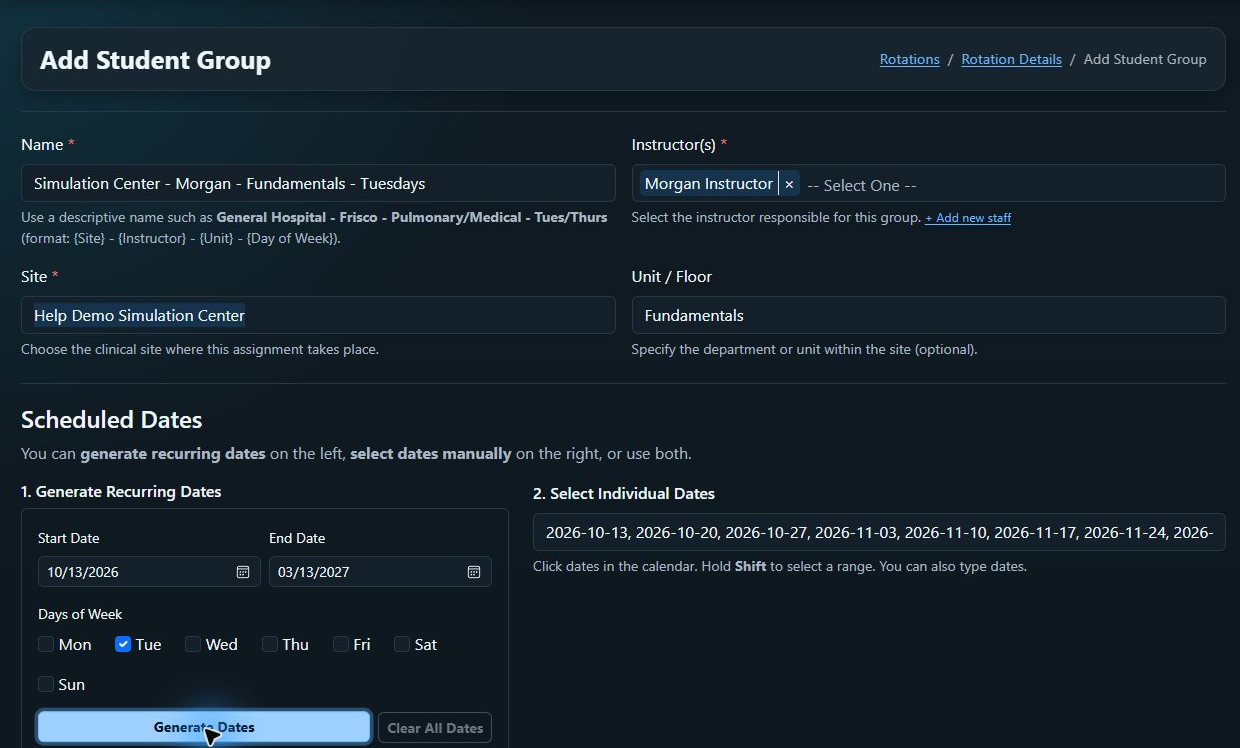
The page also offers Select Individual Dates and range selection.
Assign students and save
- Scroll below the generated date rows to Students in group.
- Search for the student by name and select the matching result. The example selected Student, Avery.

- Select Save.
- Confirm the success result. In the initial setup walkthrough, saving this group returned to Getting Started at 100% Complete.
If a student does not appear
Type the student's name into the selector and wait for results. Confirm the student was saved with the intended program and campus. A typed search term alone does not add a student: select the result so their name appears as a selected item before saving.
Return to Getting started.