Find a rotation on the calendar
Roles: All staff members. Other staff calendar navigation is described in Staff navigation by role.
Use Calendar to find scheduled clinical activities and review a group's details. Before starting, create a rotation and schedule its student group.
What you can see
Your calendar shows only the activities you have permission to view within your organization. Your role, assigned campuses and academic programs, and course or group assignments determine what appears. This is your access scope: the part of your organization's clinical schedule available to you based on your responsibilities.
Two staff members may see different activities for the same dates because their responsibilities and access differ. The Instructor, Course, and Site filters help you narrow the activities you can already see. Selecting a filter or using Clear does not give you access to additional activities outside your scope.
If an activity you expect to see is missing, first check the displayed dates and active filters. If it is still missing, ask your administrator to confirm your role, campus and academic program access, and course or group assignments.
Steps
- Open Calendar.
- Review Needs Your Attention and My Team's Queue. The demo displayed no outstanding work; queue actions were not exercised here.
- Select Filter to reveal Instructor, Course, and Site selections.
- Choose the desired values and select Apply. The walkthrough applied HDN101 as its course filter.
- Choose month, week, or day to adjust the calendar view. Month and week views were exercised in the walkthrough. Use the previous/next arrows to navigate periods.
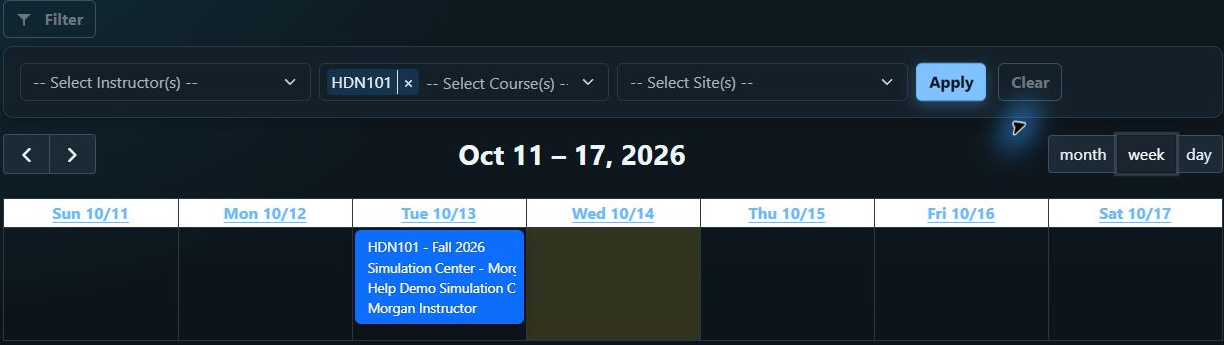
- Select a scheduled activity. A dialog opens with rotation dates, target hours, student counts, and group details.
- Review the group's available tabs and use Close to return to the calendar. To manage the full rotation, use Rotations and select its name.
Common problems
- An empty period may have no scheduled activities. Compare the rotation and group dates with the displayed calendar period.
- Review active filter selections before assuming a rotation is missing. Clear is available beside Apply; clearing and combining multiple filters were not exercised in this walkthrough.
- Role assignments and course/group membership can affect which activities you see.