Assign a preceptorship placement
Roles: Clinical Coordinator or Course Coordinator.
Use a preceptorship group to record a student's placement. Before starting, configure a preceptorship course, create its rotation, and create the student, instructor, and clinical site.
Steps
- Open Rotations, select the preceptorship rotation, and select Add Group.
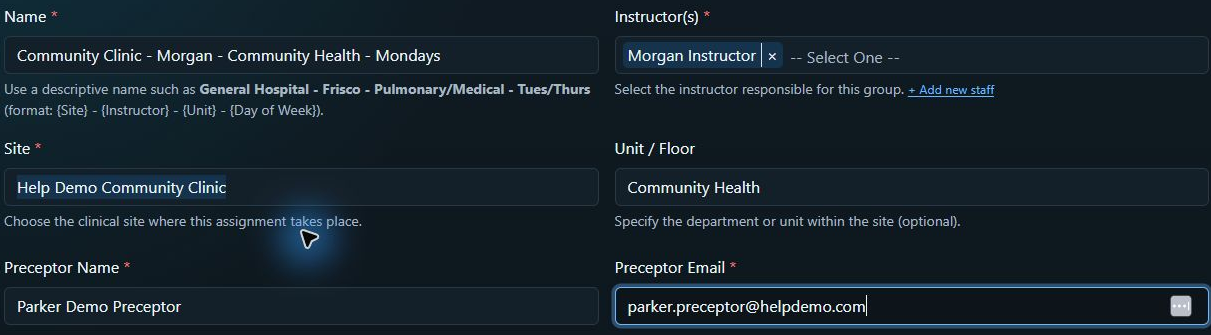
- Enter a descriptive Name. The demo uses Community Clinic - Morgan - Community Health - Mondays.
- Select Instructor(s) and Site. The demo uses Morgan Instructor and Help Demo Community Clinic.
- Enter Unit / Floor if needed.
- Enter the required Preceptor Name and Preceptor Email. These fields are separate from the Instructor selection. The fictitious example uses Parker Demo Preceptor, parker.preceptor@helpdemo.com.
- Under Scheduled Dates, review Start Date and End Date, select the Days of Week, and select Generate Dates. The demo generated 10 Mondays between January 4 and March 13, 2027. Review the resulting dates before saving.
- In Student, type the student's name and select the matching result. The demo selects Student, Blake.
- Select Save. Confirm the success notification and the student, instructor, site, and dates in Rotation Details.
- Reopen the group's Edit form and verify the preceptor name/email, student, and selected date count persisted.
Common problems
- If preceptor fields are absent, verify the course's Is Preceptorship setting.
- If Student appears empty, type part of the student's name to search and select the result.
- A long list of generated dates can move Student and Save below the visible area. Scroll to the bottom.
This walkthrough verifies placement configuration. It does not verify a preceptor sign-in, invitations, access codes, student-managed date changes, or site-visit completion.