Add and edit a clinical course
Roles: Administrator or Clinical Coordinator. Before you begin: Configure a program, any required active campus, and a clinical site. Have a Course Coordinator available.
To include skill logs, evaluations, or skill checkoffs, enable the relevant features for the course's academic program and prepare its skill categories, evaluation forms, or checkoff forms. The sections and choices available on the course form depend on the selected academic program(s).
Create your first course
- Open Getting Started and select Complete This Step under Create your first course. For later courses, use Settings → Courses → Add New.
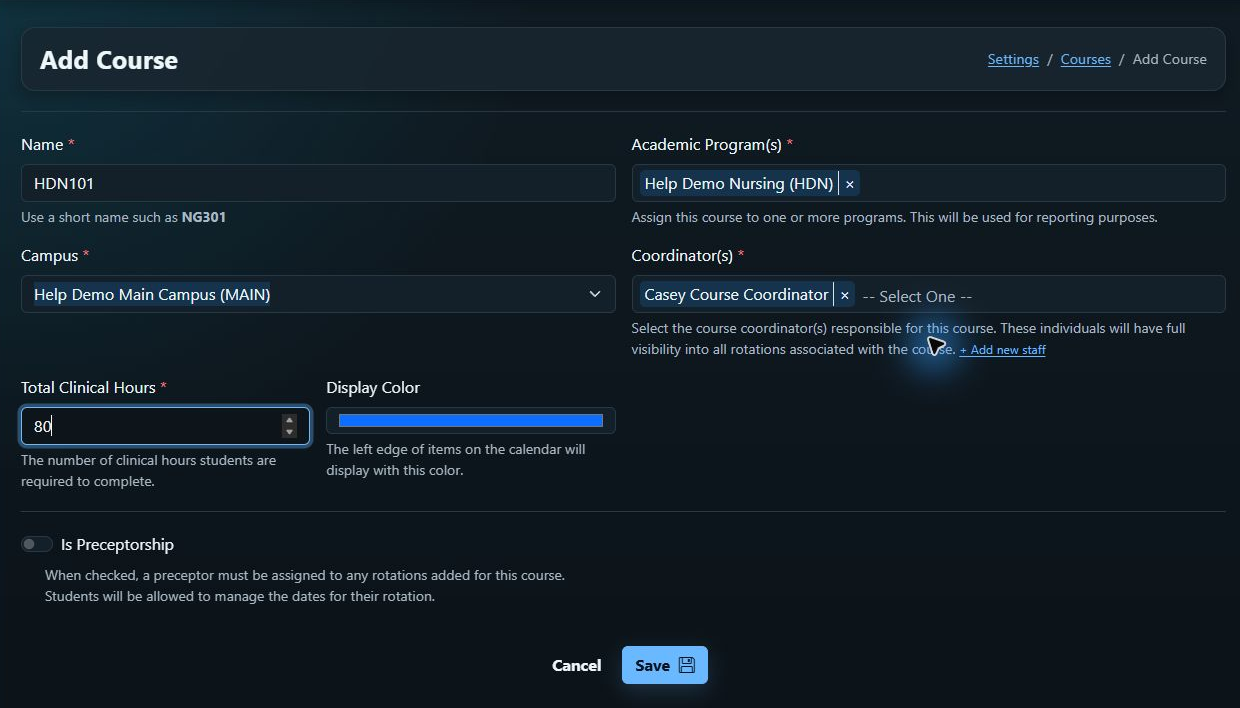
- Enter a short Name, such as HDN101.
- Select Academic Program(s). Selecting a campus-enabled program reveals the required Campus selector.
- Choose the campus, such as Help Demo Main Campus (MAIN).
- Select the responsible Coordinator(s). Coordinators have visibility into the course's rotations. If needed, add a course coordinator before continuing.
- Enter Total Clinical Hours, the number students are required to complete. This example uses 80.
- Choose a Display Color for the left edge of calendar items.
- If available, select the course's skill categories, evaluations, and skill checkoffs using the instructions below.
- Leave Is Preceptorship off for an instructor-led course.
- Select Save.
- Confirm the success notification and the completed course step on Getting Started.
Edit an existing course
- Open Settings → Courses.
- Select the course Name to open Edit Course.
- Change the relevant fields, such as Name, Academic Program(s), Campus, Coordinator(s), Total Clinical Hours, or Display Color. You can also update the skill categories, evaluations, and skill checkoffs described below.
- Select Save. If validation messages appear, correct the indicated fields and save again.
- Confirm the success notification and the updated course in the Courses list. Select its name again to confirm settings that are not shown in the list.
Include skill categories
Skill Category(ies) determines which categories' skills students can use when entering skill logs for this course. Selecting a category does not assign a skill checkoff; checkoffs have their own section.
- Open Skill Category(ies), below Display Color.
- Select a category. The Help Demo example offers Demo Communication Skills.
- Repeat to include additional categories. Selected categories appear in the field; select the × beside a category to remove it from the course selection.
- Select Save at the bottom of the course form, then reopen the course and confirm the selected categories.
If the category you need is missing, check its academic program assignment. To create a category or add its skills, see Add a skills category and Configure skills and competencies.
Require course evaluations
The Evaluations section lists the evaluations students are required to complete for the course.
- Select + Add Evaluation to add a row. To change an existing assignment, use its current row.
- Open Evaluation and select the form. The Help Demo course uses Demo Clinical Reflection.
- Choose Frequency: Once for a single evaluation per student in a rotation, or Weekly for weekly evaluations.
- Enter Start Week, using 1 or greater. For Weekly evaluations, this is the first rotation week to include; 2, for example, begins the sequence at Week 2. New rows default to Once and Start Week 1.
- Select + Add Evaluation again for another evaluation requirement. Use a row's Remove button to remove an unwanted assignment or unused row.
- Select Save at the bottom of the course form. Reopen the course and confirm each evaluation, its frequency, and its start week.

If no suitable evaluation is available, check the academic program's evaluation setting and create an evaluation form for that program. For the student's workflow, see Complete an evaluation.
Include skill checkoffs
The Skill Checkoffs section makes selected checkoff forms available for instructors to complete for students in the course's rotations.
- Select + Add Skill Checkoff to add a row. To change an existing assignment, use its current row.
- Open Skill Checkoff and select the form. The Help Demo course uses Demo Handoff Checkoff.
- Repeat + Add Skill Checkoff for additional forms. Use a row's Remove button to remove an unwanted assignment or unused row.
- Select Save at the bottom of the course form, then reopen the course and confirm the selected checkoffs.

Checkoff rows do not have Frequency or Start Week controls. If no suitable form is available, check that Skill Checkoffs are enabled for the selected academic program and create a checkoff form for it. For the instructor's workflow, see Complete a skill checkoff.
If the course does not save
Check the required fields, including Campus for a campus-enabled program. Read any error notification and confirm the course appears before creating another copy. See Troubleshooting.
Continue with the student setup step on Getting started.